Introduction
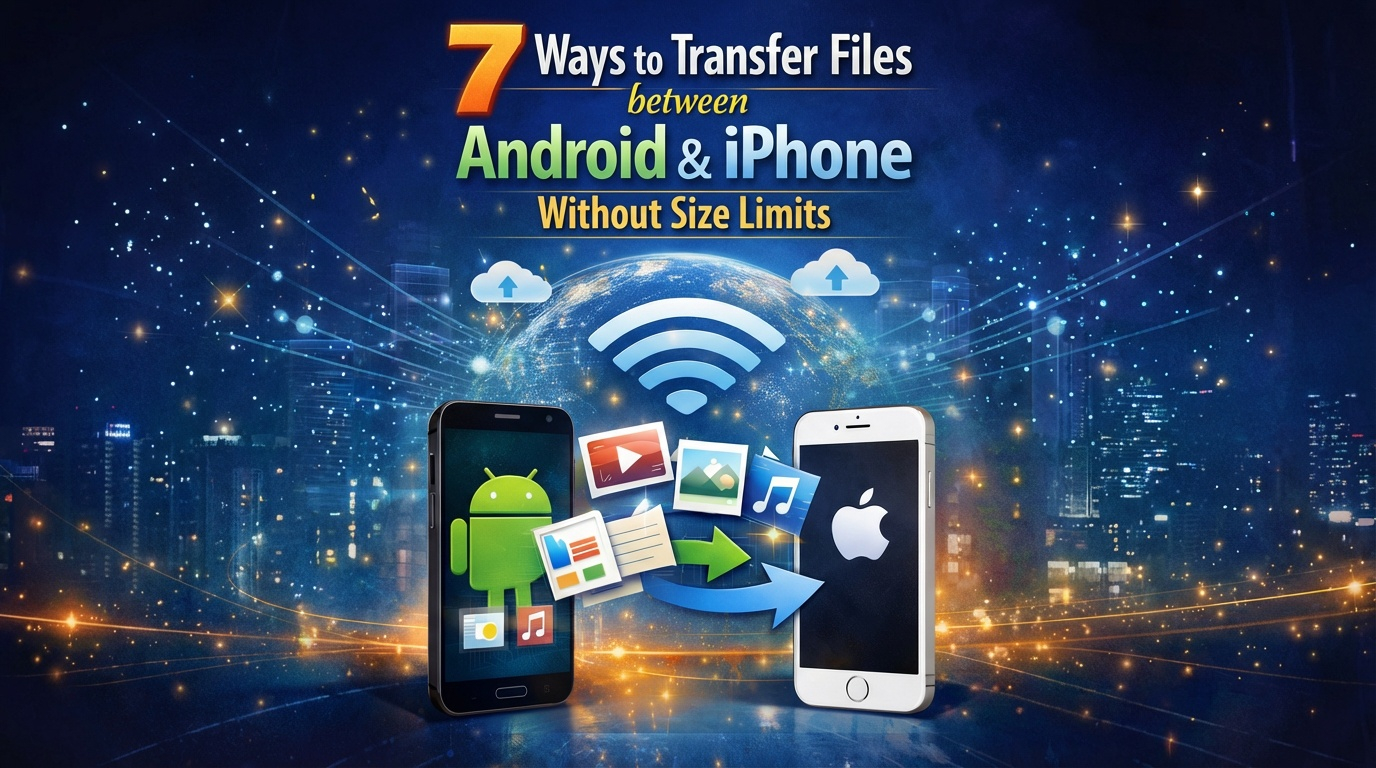
In our increasingly digital world, transferring files between different devices has become an essential task. Whether you're switching from an Android to an iPhone, sharing photos with friends, or moving documents for work, finding a hassle-free method to transfer files is crucial. This guide outlines seven effective methods that allow you to transfer files between Android and iPhone without worrying about size limits. From wireless options to cloud storage solutions, we’ve got you covered.
1. Wireless Transfer
Quick Overview of Wireless Options
Wireless transfer methods are among the fastest and most convenient ways to share files between Android and iPhone devices. By using internet connectivity or built-in features, users can transfer files without needing cables or physical connections. Here we discuss two primary wireless options: Wi-Fi Direct and Bluetooth file sharing.
Using Wi-Fi Direct
Wi-Fi Direct allows two devices to connect directly over Wi-Fi without an intermediate network. This method is generally faster than Bluetooth and can handle larger files. To use Wi-Fi Direct, enable the feature on both devices, then select the files you want to transfer. Choose the recipient device from the list of available connections, and start the transfer process. Once connected, users can send multiple files quickly and efficiently.
Bluetooth File Sharing
Bluetooth is another popular method for transferring files between devices. It is universally supported across both Android and iPhone, making it accessible for most users. To share files via Bluetooth, turn on Bluetooth on both devices and pair them. After pairing, select the files to share, choose the Bluetooth option, and select the target device. The transfer speed may vary, especially with larger files, but it can be an effective method for smaller documents and images.
2. Cloud Storage Solutions
Popular Cloud Services to Consider
Cloud storage services have revolutionized the way we store and share files. Platforms like Google Drive, Dropbox, and OneDrive allow users to upload files and share them across various devices seamlessly. The advantage of using cloud storage is that it bypasses size limits typically imposed by messaging apps or email services.
Steps to Upload and Share Files
To use cloud storage for file transfer, first, download the relevant app on both devices. Sign in or create an account, then upload the desired files from your Android device to the cloud. Once uploaded, you can share a link via email or a messaging app, allowing the iPhone user to access and download the files easily. This method is especially useful for large files, as you can store and share them without restrictions.
3. File Transfer Apps
Best Apps for Cross-Platform File Transfers
Several apps are specifically designed for transferring files between Android and iPhone smoothly. Popular options include Mobilink, SHAREit, Send Anywhere, and Xender. These apps often utilize a combination of direct connections and cloud services, providing fast and efficient transfers.
How to Use These Apps Effectively
To use a file transfer app, download the app on both devices and create accounts if necessary. Open the app on both devices, and one user can select the files to send while the other selects the option to receive. These apps usually transfer files quickly and may even support transferring folders or multiple files at once, making them highly convenient for users with substantial data to share.
4. Email for Files
Sending Large Files via Email
Email is a traditional method of sharing files that many still rely on today. However, most email services have attachment limits, typically ranging from 25 MB to 50 MB. If the files you want to share are within this size limit, simply attach the files to an email and send them to the recipient's email address. For larger files, consider using a cloud service in conjunction with your email.
Best Practices for Emailing Files
When sending files via email, make sure to zip them if they exceed the file size limits. Additionally, clearly label your email subject and message content to inform the recipient about the files. This not only improves the chances of your email being opened promptly but also ensures that the recipient understands what to expect. If you are sending multiple files, consolidating them into a single email or folder can be helpful.
5. Cross-Platform Software
Overview of Available Software
Various cross-platform software solutions are available for transferring files between Android and iPhone. Programs like SHAREit, AirDroid, and Snapdrop facilitate smooth file transfers without the constraints of traditional methods. They often offer additional features like file management, remote access, and backup options.
How to Set Up and Use These Tools
To use cross-platform software, download the applicable software on both devices. Follow the installation instructions, usually involving creating an account. Once set up, you can use the software interface to send files back and forth. This approach often includes a straightforward drag-and-drop feature, making it user-friendly even for those who aren't tech-savvy. The ability to manage files efficiently makes these tools appealing for regular users.
6. Direct USB Connection
Using a Computer as an Intermediary
If you prefer a more traditional method, using a direct USB connection can be effective. By connecting both devices to a computer, you can transfer files directly from one device to another. This method is particularly useful for larger files that may not transfer well over wireless methods.
Step-by-Step Guide for USB Transfers
To transfer files using a USB connection, first connect your Android device to the computer using a USB cable. Enable file transfer mode on your Android device. Copy the files you want to share to your computer. Then, disconnect the Android device and connect the iPhone. Use iTunes or Finder to transfer the files to the iPhone. This method ensures that files are transferred without data loss and is ideal for users who prefer a wired connection.
7. Use of QR Codes
Generating QR Codes for File Transfers
QR codes have emerged as a modern way to share files quickly. Certain apps allow you to generate QR codes for specific files or folders, which can then be scanned by another device to access the files directly. This method is fast and doesn't require any cables or complex steps.
Apps That Support QR Code Transfers
Apps like TransferNow and Scan to Share support QR code file transfers. To use this feature, upload your file to the app, generate a QR code, and display it on your screen. The recipient can then use their device to scan the QR code and download the file directly to their phone. This method is not only efficient but also adds a layer of convenience for users on the go.
Conclusion
Transferring files between Android and iPhone devices doesn't have to be a daunting task. With various methods available—wireless transfers, cloud storage solutions, file transfer apps, email, cross-platform software, direct USB connections, and QR codes—users can choose the option that best fits their needs. Each method has its advantages, and the right choice often depends on the file size, urgency, and user preference.
FAQs
What is the fastest way to transfer files between Android and iPhone?
The fastest way is often through file transfer apps like SHAREit or using Wi-Fi Direct, which bypasses the limitations of traditional methods.
Are cloud storage services safe for file transfers?
Yes, reputable cloud storage services have strong security measures in place, making them a safe option for sharing files between devices.
Can I transfer large files without using email?
Yes, using cloud storage services or file transfer apps allows you to share large files without email limitations.
Is it necessary to install software to transfer files?
Not necessarily; you can use built-in features like Bluetooth or Wi-Fi Direct without additional software, but dedicated apps can enhance the experience.
How do I ensure successful file transfers?
Always check that both devices are compatible with the method you choose and ensure they are connected to the same network or paired properly if using Bluetooth.